JetSon Nano
2023, Nov 17
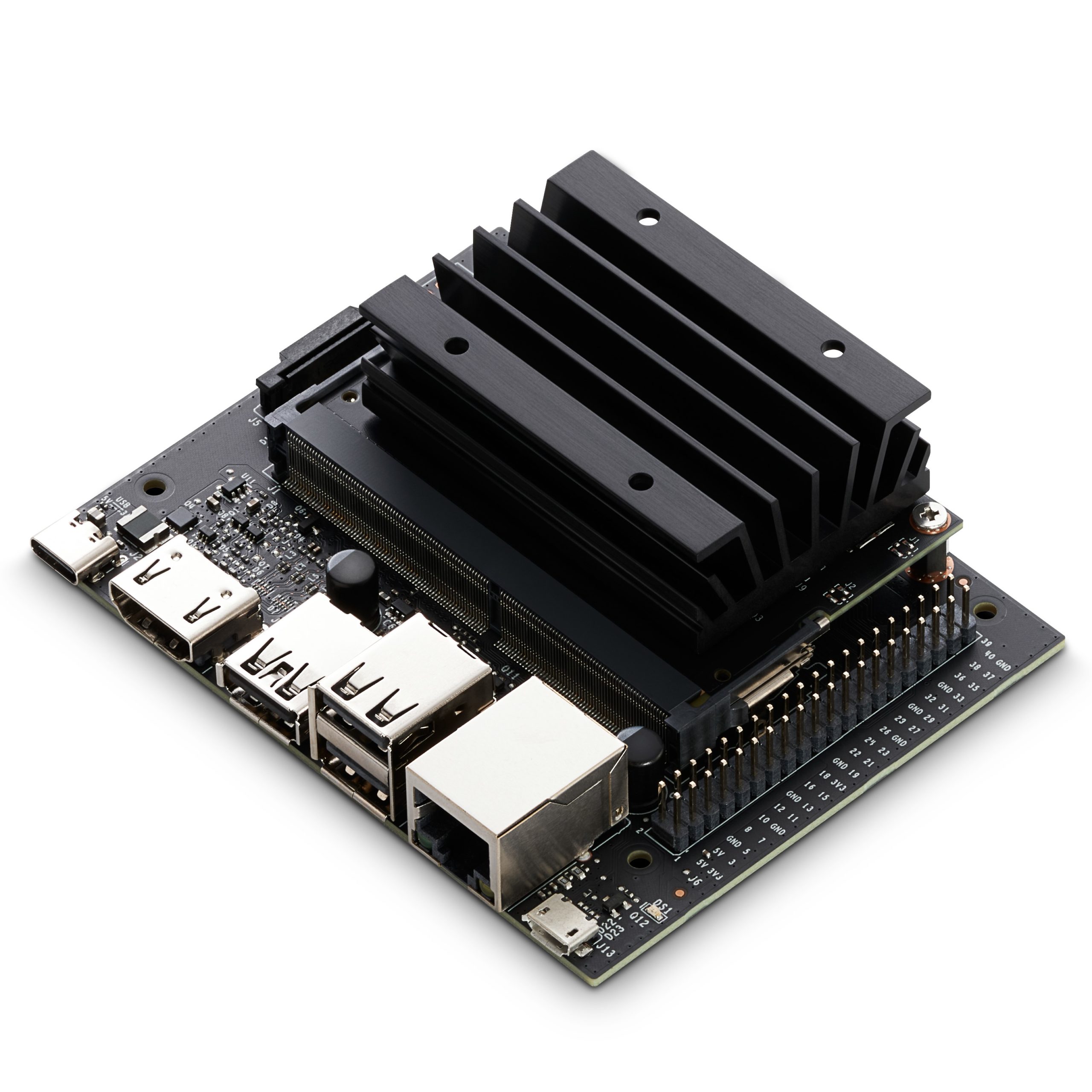
1. JetSon Nano 환경 설정
1.1. JetSon Nano Developer Kit SD Card Image 설치(4GB)
1.2. SD Card Formatter 설치하여 SD Card 포맷
1.3. balenaEtcher 설치, 실행하여 SD Card에 이미지 설치
1.4. JetSon Nano에 SD Card를 넣고 실행, Ubuntu OS 설치
1.5. Desktop Sharing
-
바탕 화면의 Search 탭에서 Startup Application 검색하여 실행
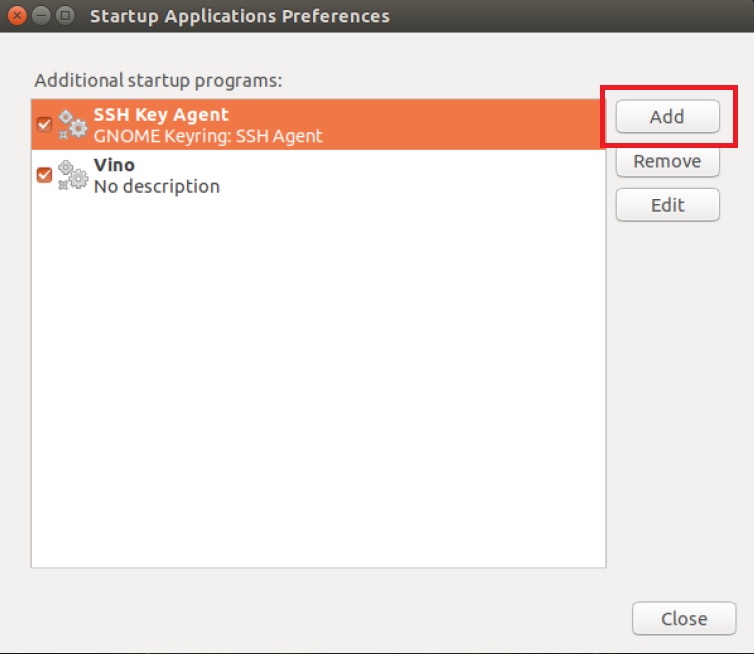
Add
- Name: Vino
- Command: Other Locations -> Computer -> /usr/lib/vino/vino-server
-
Window에서 VNC를 통해 JetSon Nano를 실행키시기 위해 /usr/share/glib-2.0/schemas/org.gnome.Vino.gschema.xml 파일 마지막에 아래 코드를 추가
<key name=’enabled’ type=’b’> <summary>Enable remote access to the desktop</summary> <description> If true, allows remote access to the desktop via the RFB protocol. Users on remote machines may then connect to the desktop using a VNC viewer. </description> <default>false</default> </key> - 저장 후 컴파일, 재시작
sudo glib-compile-schemas /usr/share/glib-2.0/schemas gsettings set org.gnome.Vino require-encryption false gsettings set org.gnome.Vino prompt-enabled false sudo reboot -
Setting에서 wired_connection의 IPv4 Setting Method를 Shared to other computer로 설정

-
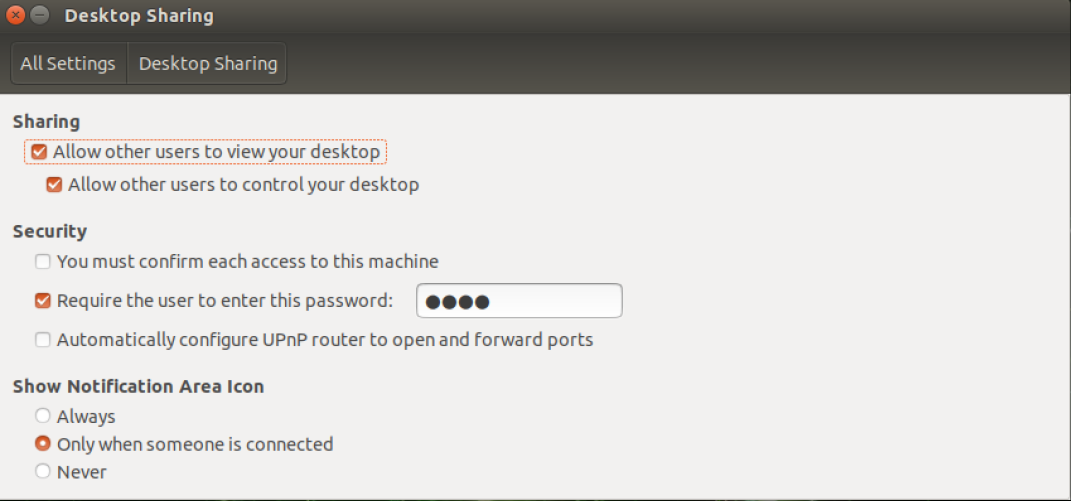
Setting에서 desktop_sharing에서 다음과 같이 설정
-
Terminal에서 ifconfig 명령어로 eth0 주소 또는 wlan0 주소 확인
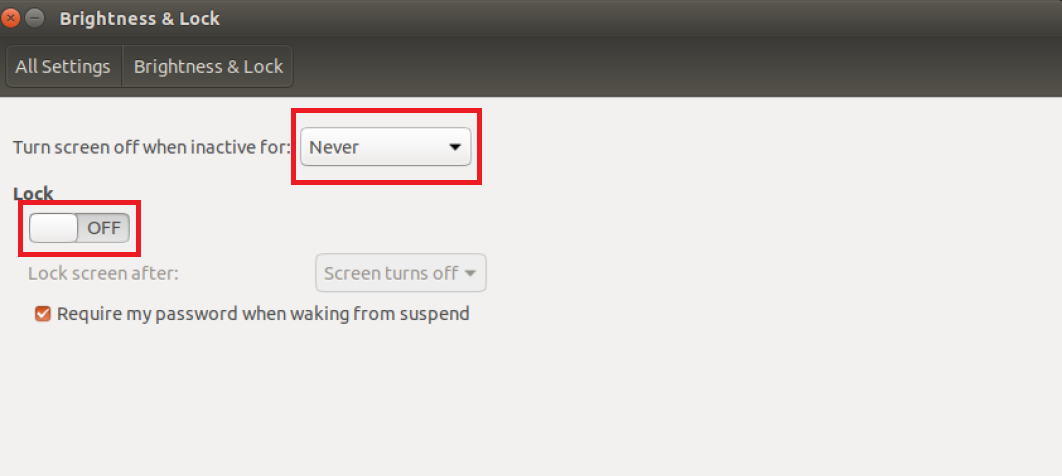
- VNC Viewer로 실행시켰을 때 JetSon Nano의 화면이 꺼지면 안되기 때문에 Setting의 Brightness & Lock에서 다음과 같이 설정
1.6. Window 환경으로 돌아와 RealVNC Viewer 설치
1.7. VNC Viewer를 실행시켜 JetSon Nano 연결 생성
- JetSon Nano OS에서 확인한 wifi 주소 또는 ethernet 주소로 연결
1.8. 모니터 해상도 설정
- VNC Viewer 에서 보이는 JetSon Nano OS의 해상도를 설정
-
/etc/X11/xorg.conf 파일의 마지막에 아래의 코드를 입력
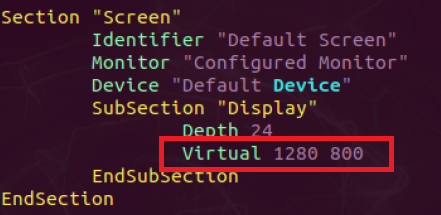
- Virtual 값으로 해상도 설정
2. VSCode에서 JetSon Nano OS 연결
2.1. Extension에서 Remote_ssh 설치
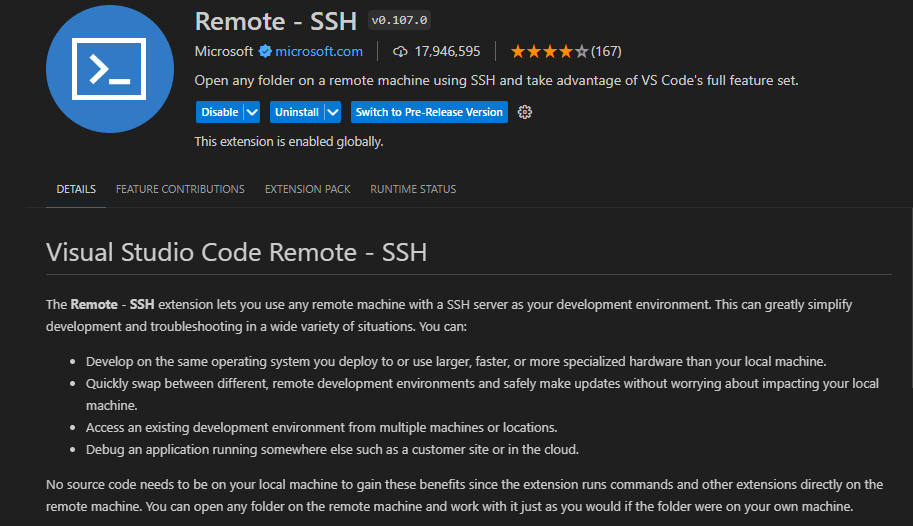
2.2. Remote 설정
-
VSCode의 왼쪽 아래에 Open a Remote Window 버튼 클릭
-
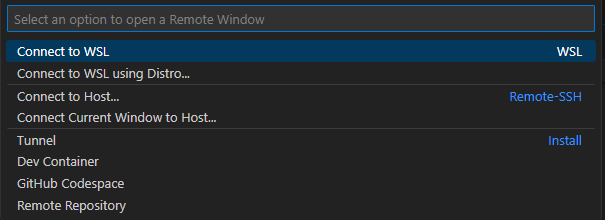
Connect to Host… 클릭
-
새로운 Host를 추가하기 위해 Configure SSH Hosts… 클릭

- config 파일에서 아래의 정보 입력
Host "Host ip address" HostName "Host name" User "JetSon Nano OS user id" - 추가한 Host로 SSH 연결